Getting Started with rocm-cli
A practical walkthrough of rocm-cli: install it, check your machine, install ROCm, serve a model, and clean up after yourself.
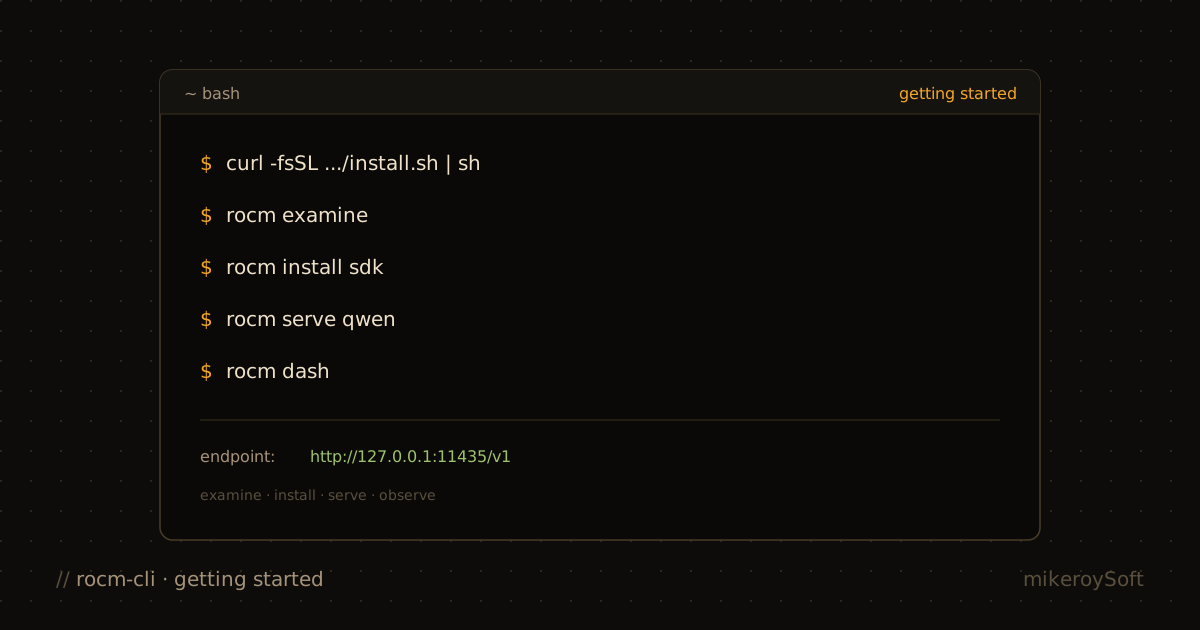
I've written about why rocm-cli exists and about a bug we found after launch. I never wrote the plain how-to. This is that post: install it, point it at your machine, get ROCm on there, and serve a model.
Everything here is against the upstream repo, ROCm/rocm-cli. This walkthrough targets v0.2.0, released October 7; v0.2.1 became the latest tagged release on October 29. It's still a Tech Preview, so commands and behavior can change between releases. If something below doesn't match what you see, trust rocm <command> --help over me.
What it is
rocm-cli's user-facing binary is rocm; releases also install rocmd, the background supervisor and telemetry daemon. rocm checks your GPU and driver, installs TheRock ROCm wheels and a matching PyTorch into a managed environment, and starts OpenAI-compatible model servers using Lemonade (llama.cpp) or vLLM. It also has two terminal UIs: a small launcher and a full-screen dashboard.
The reason it exists is the setup cliff. Getting from "I have an AMD GPU" to "a model is answering requests" used to mean a long README, a PyTorch wheel index, a Python environment, and a few environment variables you only learned about after something broke. rocm-cli doesn't remove the moving parts. It does the bookkeeping for them so you don't have to.
Platform support, from the README:
- Linux x86_64: Ubuntu 24.04 or newer. Full support, including the live dashboard and both engines.
- WSL2 x86_64: same Linux binary, Ubuntu 24.04 or newer, full support.
- Windows x86_64: the CLI and Lemonade serving. No live dashboard, no vLLM.
- macOS: not supported.
The Ubuntu 24.04 floor is real. Lemonade is linked against glibc 2.38 and GLIBCXX_3.4.32, so 22.04 won't run it.
Install
On Linux or WSL2:
1curl -fsSL https://raw.githubusercontent.com/ROCm/rocm-cli/main/install.sh | sh
The installer downloads the release bundle, checks its SHA-256, puts rocm and rocmd (the telemetry daemon the dashboard uses) in ~/.local/bin, and adds that folder to your shell PATH. Rerun the same line to upgrade.
The script takes one argument, a channel. Leave it off for the latest release, pass nightly for nightly builds, or pass a tag to pin a version:
1curl -fsSL https://raw.githubusercontent.com/ROCm/rocm-cli/main/install.sh | sh -s -- nightly
2curl -fsSL https://raw.githubusercontent.com/ROCm/rocm-cli/main/install.sh | sh -s -- v0.2.0
If you want it somewhere other than ~/.local/bin, set ROCM_CLI_INSTALL_DIR before running it.
On Windows, from PowerShell:
1irm https://raw.githubusercontent.com/ROCm/rocm-cli/main/install.ps1 | iex
Open a new terminal so the PATH change takes effect, then:
1rocm version
On a box with no GPU and no ROCm yet, that looks like this:
1rocm-cli 0.1.0 (v0.2.0, a5e507a)
2ROCm SDK: not detected
3GPU driver: not detected
not detected is expected before you've installed anything. What matters is that the first line prints.
First run: the launcher
Run rocm with no arguments in a terminal:
1rocm
You get a small menu instead of a wall of help text:
- Set up this system: install or update ROCm
- Serve a model: run a model on your GPU
- Diagnose & fix: check GPU, driver, and ROCm
- Chat: talk to a local or API model
- Open full dashboard →: the live dashboard
Arrow keys and Enter to pick, q or Ctrl-C to quit. If you pipe the output somewhere, rocm prints a short status summary instead of opening the UI.
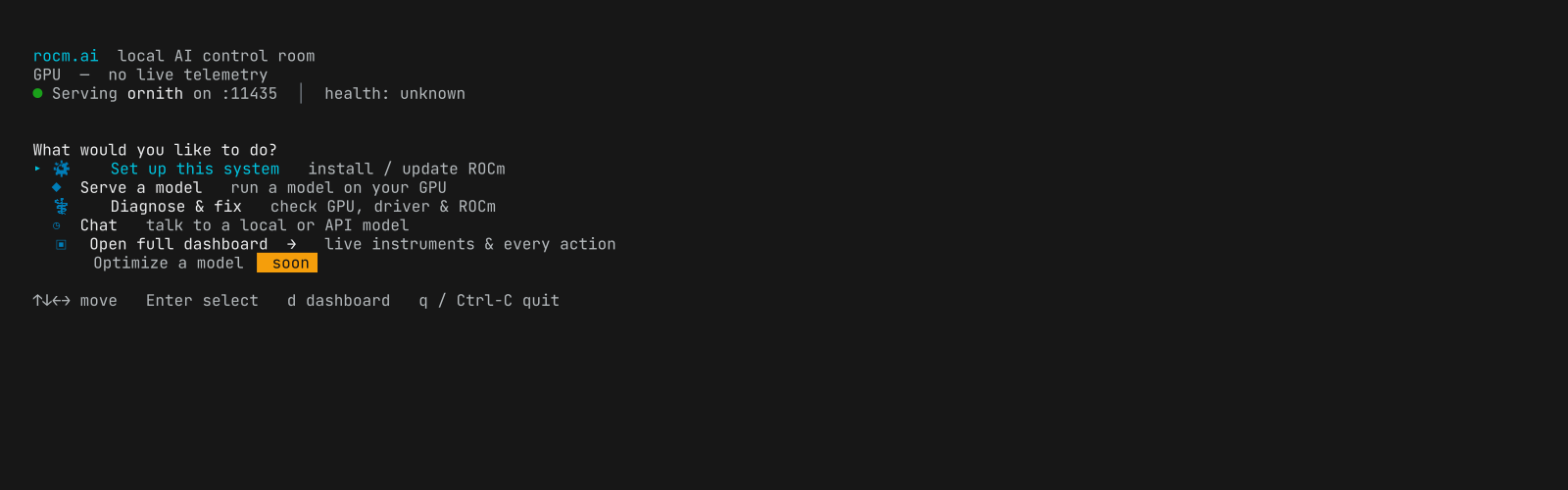
That is a real session from upstream ROCm/rocm-cli main at 94d78b98, not my fork: the launcher found an Ornith server already listening on port 11435.
I spent a lot of time on that launcher. If you only remember one command from this post, remember rocm. The rest of this post is the same flow done by hand, which is what you want for scripts, SSH sessions, or just knowing what's happening underneath.
Check the machine
1rocm examine
This is the command I run first on any machine. It reports the OS and distro, the GPU's gfx target and the TheRock package family that matches it, the driver status, any existing ROCm install it found (an /opt/rocm install shows up as legacy_rocm_status: detected_unmanaged), the managed runtimes, and the engines. Add --json if a script needs to read it.
The line to look for is active_runtime_status. If it says ready, you can skip straight to serving.
If something looks wrong, ask the diagnosis catalog:
1rocm diagnose
diagnose matches the machine against a fixed catalog of known ROCm, PyTorch, and llama.cpp problems and ranks the matches. Each match prints an id: and an apply with: line. Use the id, not the #1/#2 ranking. Then look before you leap:
1rocm fix fix-4-render-group --dry-run
2rocm fix fix-4-render-group
rocm fix with no id lists the whole catalog. Each entry is marked AUTO (the command makes the change), NEEDS-ARG, PRINT-ONLY (it prints the steps for you to run, usually because they need sudo or a reboot), or DIAGNOSE-ONLY. One thing to keep in mind: no match doesn't mean nothing is wrong. It means the catalog doesn't recognize the problem. In that case diagnose tells you where to report it.
On Linux, if you need the kernel driver, preview the plan first:
1rocm install driver --dry-run
Without --dkms that's a read-only preflight. Add --dkms to plan an actual DKMS install. On Windows, install driver never installs anything. It reports your display driver version and date.
Install ROCm
1rocm install sdk --dry-run
2rocm install sdk
This downloads TheRock ROCm wheels and a matching PyTorch stack into a Python environment rocm-cli manages. It doesn't touch an existing system ROCm. The managed runtime sits next to it.
Without --version it installs the ROCm 7.14 line. rocm-cli also supports ROCm 10.0 and 10.1. Those pick their device payload by exact GPU arch, so if rocm-cli can't pin down your exact arch, pass the raw gfx code from rocm examine:
1rocm install sdk --version 10.1.0 --family gfx1200 --dry-run
A family label like gfx120X-all is rejected for ROCm 10. That's deliberate. There's no catch-all payload to fall back to, and a guess here would fail later in a much more confusing way.
Two flags worth knowing:
--develadds the compiler, headers, and static libraries so you can build GPU code. It roughly doubles the download. It also creates a second runtime instead of adding to the one you have.--yesapproves replacing the active runtime and installing required system packages without prompting, which means it may run sudo. In CI,--approve-replacing-active-defaultapproves only the runtime switch.
Runtimes live side by side, so you can keep more than one and switch:
1rocm runtimes list
2rocm runtimes activate <runtime-key>
3rocm runtimes rollback
rollback remembers exactly one step back. It isn't a history.
Serve a model
See what the curated catalog recommends:
1rocm model
The list is grouped by hardware. Ryzen AI (Strix Halo) and Radeon get GGUF models through Lemonade. Instinct (MI300X, MI350X, MI355X) gets safetensors models through vLLM. Before you download tens of gigabytes, ask whether a model will actually fit:
1rocm diagnose --model qwen
That answers ready, degraded, blocked, or undetermined from the recipe and your GPU. It fetches nothing. On my GPU-less test box it correctly says BLOCKED and explains that there is no CPU fallback.
Then serve it:
1rocm serve qwen
qwen is a built-in alias for a small assistant model. By default the server runs in the background under rocm-cli's supervision. You get a progress indicator, then a summary with the endpoint, the model name, and a quick smoke test (time to first token and rough tokens per second). It binds 127.0.0.1:11435 unless you pass --host or --port.
You can serve any compatible Hugging Face model, but the form has to match the engine your GPU selects:
1# Lemonade (Radeon, Ryzen AI): a GGUF repo with an explicit quant
2rocm serve unsloth/Qwen3.6-35B-A3B-GGUF:Q4_K_M
3
4# vLLM (Instinct): a safetensors repo
5rocm serve Qwen/Qwen3.6-27B
If startup goes wrong, attach to the logs:
1rocm serve qwen --verbose
Ctrl-D detaches and leaves the server running. Ctrl-C stops it.
Manage what's running:
1rocm services list
2rocm services logs <service-id>
3rocm services stop <service-id> --yes
And talk to it, either from the dashboard's Chat tab or with a one-shot prompt:
1rocm chat --provider local --model qwen --prompt "Hello"
The endpoint is OpenAI-compatible, so anything that speaks that API can use it. Point it at the URL rocm services list shows you.
The dashboard
1rocm dash
Five tabs: Home, ROCm, Serving, Observe, Chat. Switch with Tab or the number keys 1 to 5. It starts an embedded rocmd if one isn't running. Live mode needs Linux or WSL2.
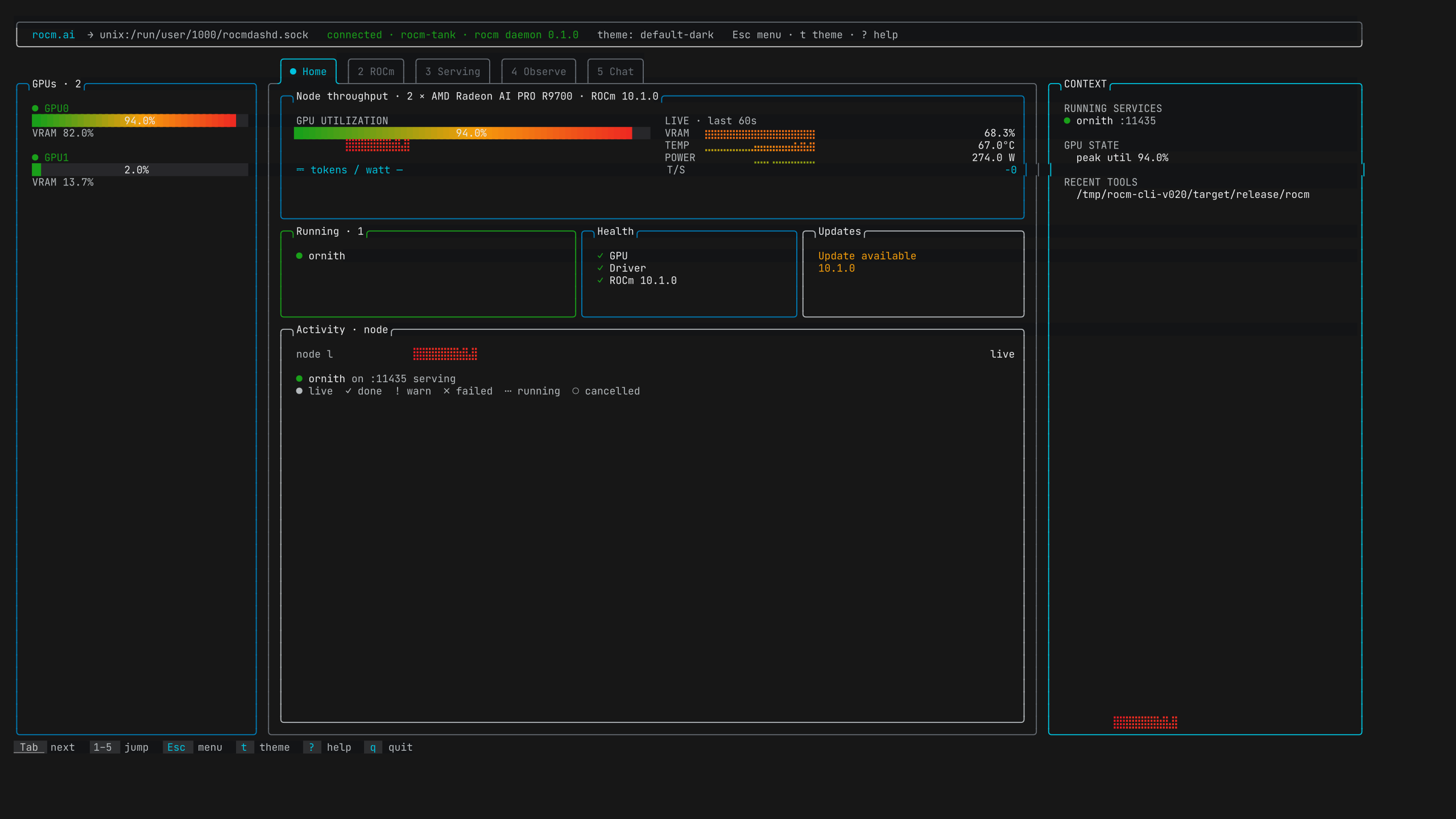
That Home tab is live on rocm-tank, with two Radeon AI PRO R9700 GPUs and an Ornith server on port 11435. Under load, GPU 0 is at 94% utilization and 67°C; the gradient utilization gauge and amber TEMP history make both load and thermal trend visible.
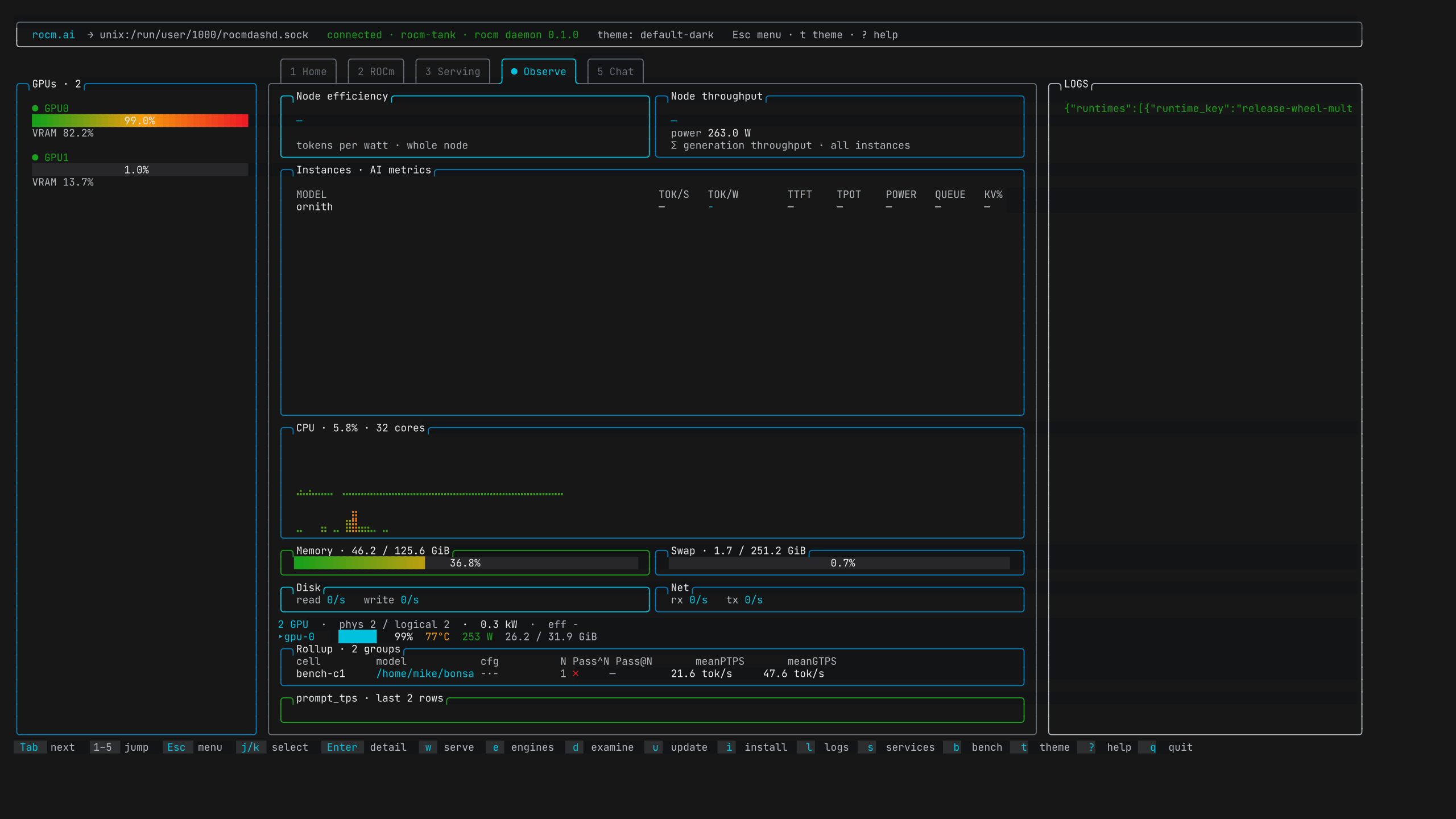
Observe is the same upstream live session later in the load sweep: GPU 0 reached 99% utilization, 77°C, and 253 W while the CPU history stayed visible. No synthetic feed, and not an official benchmark.
If you want to look around without a GPU, there's a synthetic session that runs anywhere:
1rocm dash --demo
A few tips
Use --dry-run. install sdk, install driver, fix, update, runtimes uninstall, the storage cleanups, and uninstall all take it. I use it constantly.
Pick a GPU explicitly on multi-GPU boxes. --gpu auto prefers the lowest-numbered idle GPU that isn't already serving. If none is idle, it falls back to the non-busy GPU with the most free VRAM, then the first non-busy GPU. --gpu 1 pins one. Selection is applied through HIP_VISIBLE_DEVICES, and rocm-cli warns if ROCR_VISIBLE_DEVICES is also set, because the two orderings can disagree.
Gated models need a token. For Llama and friends, run huggingface-cli login or export HF_TOKEN before rocm serve.
Watch your disk. Every runtime is a multi-gigabyte folder, and they add up.
1rocm storage
2rocm storage remove-old-installs --dry-run
It keeps the two most recent installs per channel, format, GPU family, and toolchain, and never removes the active runtime or the rollback target.
Get a quick load number. Once something is serving:
1rocm bench load --endpoint http://127.0.0.1:11435/v1
That's a local smoke test, not an official benchmark, and it says so in its own help text.
Check for ROCm updates with rocm update (check only), rocm update --dry-run, then rocm update --apply --activate.
Shell completions:
1source <(rocm completions bash)
There are zsh, fish, elvish, and powershell scripts too.
Leaving cleanly. rocm uninstall --dry-run shows exactly what would go: binaries, config, data, and caches, plus the PATH change the installer made. Downloaded models live in the data folder, so if you want to keep them, pass both --keep-config and --keep-data. On a default install those two point at the same ~/.rocm folder.
Where to go next
- The repo and README: github.com/ROCm/rocm-cli. The README has the full command reference, and it's long because it explains the edge cases.
- Releases and notes: github.com/ROCm/rocm-cli/releases
- vLLM specifics: docs/vllm.md. WSL2: docs/wsl.md.
- Bugs and requests: github.com/ROCm/rocm-cli/issues. If
rocm diagnosedidn't recognize your problem,rocm diagnose --reportprints exactly what your machine would contribute to a report and sends nothing.
If you get stuck, start with rocm examine and rocm diagnose. Most of what I learned building this ended up in one of those two commands.
The views expressed here are my own and do not represent AMD.